Phone Queue Visibility & Management
You own the board for your pod: coverage, queue state, and the call for help.
You are logged into your primary queue every day, and into your regular secondary queues. When a Code goes out, you log into the queue that asked for help.
You are a member of every queue and logged into none of them by default. Project work runs uninterrupted until a Code Yellow or Code Red goes out. Then you log in and help, whichever region it is.
Where to look
Primary tool: the Panel button in the 3CX softphone
Everything you need for live queue visibility is in Panel, inside the 3CX softphone web client. Most leads and engineers belong to more than one queue. Your primary queue is your queue belonging to the geographic region you are in. Secondary queues are any others you regularly work in. Open Panel and select each queue from the dropdown to check it.
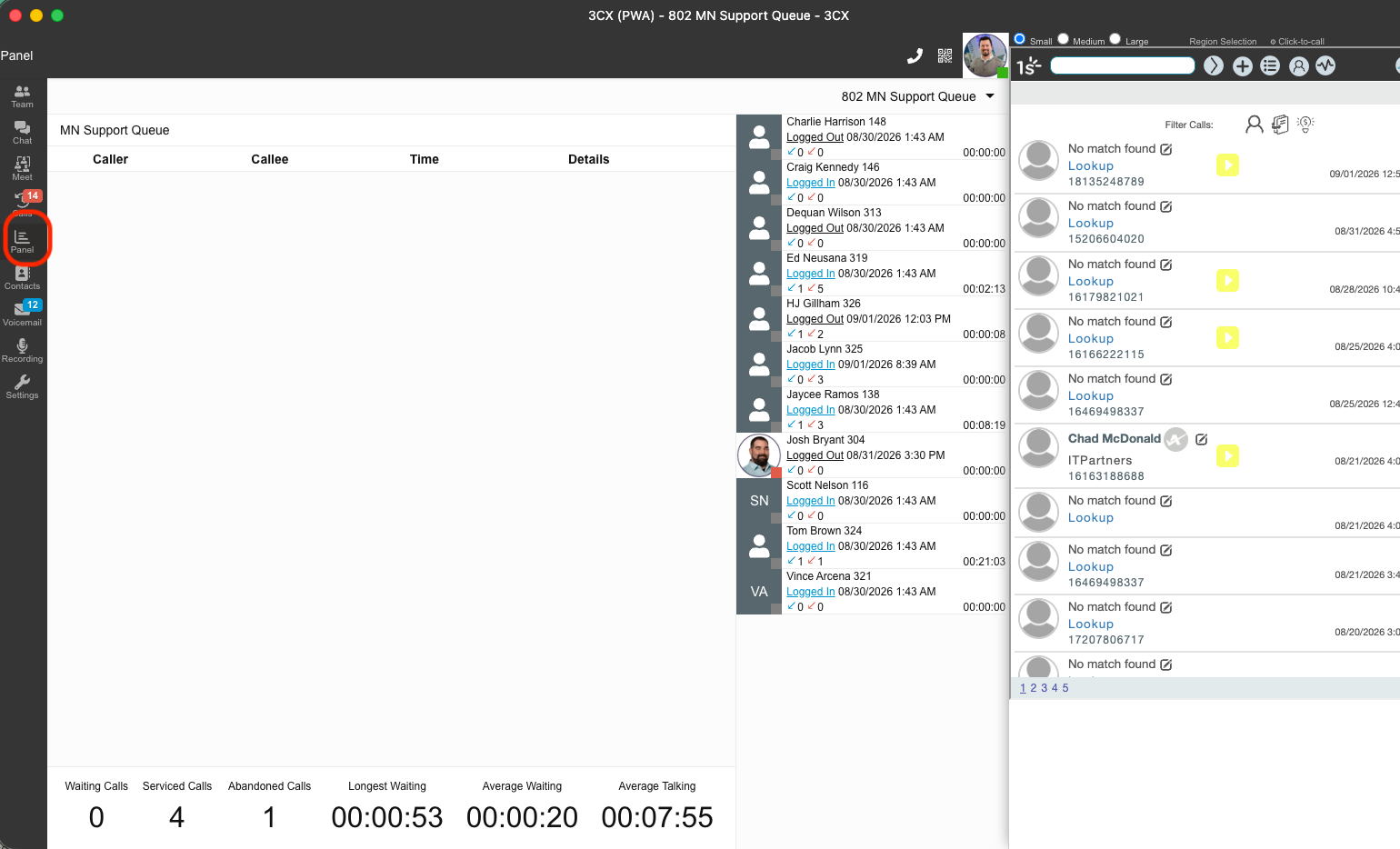
Panel also lets queue managers log agents in and out of the queue on their behalf. You have this ability as the assigned queue manager. Agents can only log themselves in and out.
You log yourself in and out of a queue. Your pod lead, as the assigned queue manager, can also do it on your behalf.
1Stream resources for the bigger picture
Use these to see how the day is trending and when you need to call for help.
Understand the two switches: status and queue login
An agent receives calls from a given queue only when both are set correctly. Queue login is per-queue: an agent can be logged into their primary queue and logged out of a secondary one.
Every engineer is a member of every queue
In order to facilitate instant help, engineers from every region will belong to all queues, but membership does not mean logged in. The default state:
- Logged in: your primary queue and the secondary queues you regularly work in.
- Logged out: every other queue. You log in only when a Code Yellow or Code Red goes out, one click, since membership already exists. Log back out when the queue returns to Green.
- Project engineers, logged out by default: you are listed in every queue and logged into none of them. Project work is not interrupted by queue calls.
- Logged in during a Code: when a Code Yellow or Code Red goes out for any region, log into that queue, one click, since membership already exists. Log back out when the pod lead posts that conditions are Green.
Ring order adds a second layer of protection: engineers outside a queue's native region sit far down the list, so even while logged in during a Code Yellow or Red event, they only ring when everyone ahead of them is pinned down.
When Panel shows callers waiting but no one ringing, check both columns. An agent who looks green but is logged out of the queue is invisible to callers.
Queue states: Green, Yellow, Red
Manage your queue to these thresholds all day. Panel and the wallboard give you the longest-wait number.
- Post in the Engineering-General channel.
- Request immediate assistance from available engineers.
- Post back when you can see additional resources logged in, to confirm help has been received.
- If conditions relax to Green, post a thank you and let them know they may return to their normal queues.
- Post in the Engineering-General channel.
- Request immediate assistance from available engineers.
- Pull in L2/L3 and yourself, and notify the other pod leads that you need overflow coverage.
- Post back when you can see additional resources logged in, to confirm help has been received.
- If conditions relax to Green, post a thank you and let them know they may return to their normal queues.
When a Code goes out, here is your part
- Watch the Engineering-General channel for the words "Code Yellow" or "Code Red".
- Log into the queue named in the post. One click. Membership already exists.
- Set your status to Available and take calls until the pod lead posts that conditions are Green.
- Log back out of that queue and return to your normal work.
In Code Yellow or Code Red, you are on the phones too
Pod leads are expected to be logged into the queues they manage and taking calls until response targets are back on track. Calling the Code is not the whole job.
- Log into every queue you manage and set your status to Available.
- Take calls alongside your pod until the longest wait is back under 3 minutes.
- Keep watching the board while you do it. You are still the one who calls Green.
Posted a Code Yellow or Code Red and the engineers you tagged are not logging in? Tag Denny and Chad in the same thread for visibility. Both of them log into the queues as well for additional support.
When to ask for help
Do not wait until Red to communicate. Use the exact phrases "Code Yellow" and "Code Red" in Teams so everyone recognizes the ask instantly and nobody has to interpret. Out-of-region engineers log into your queue with one click and help clear it.
Repeated Yellow or Red at the same times of day: raise it in the daily huddle. That is a staffing or scheduling problem, not a hustle problem.
Any wait over 5 minutes
Every call that waits over 5 minutes gets a same-day report from the pod lead. Bring these to the daily long-wait review. A 5-minute wait without a filed reason and plan is itself a miss.
DND rules
Default expectation: phones are available. DND is for defined exceptions, not routine work or personal preference.
- Active customer call
- Customer meeting or onsite work
- Major outage, security event, or critical escalation
- High-risk technical change where interruption creates risk
- Approved focus work with defined coverage and a defined end time
- Scheduled break or lunch
- Standard ticket work
- Routine troubleshooting that can be paused
- Documentation and ticket notes
- Email, internal messages, or administrative work
- Waiting on installs, scans, reboots, or processes
- Personal preference for uninterrupted work
Daily start checklists
Print these and keep them at the desk. Tick them before the first ticket of the day.
Standards we manage to
Pizza Friday: the 4-week wait-time challenge
Combined wait time is the sum of all caller wait time across your pod's primary queue, Monday through Thursday of the current week. The winner is announced each Friday morning. Winning pod eats. Everyone else watches the board harder next week.